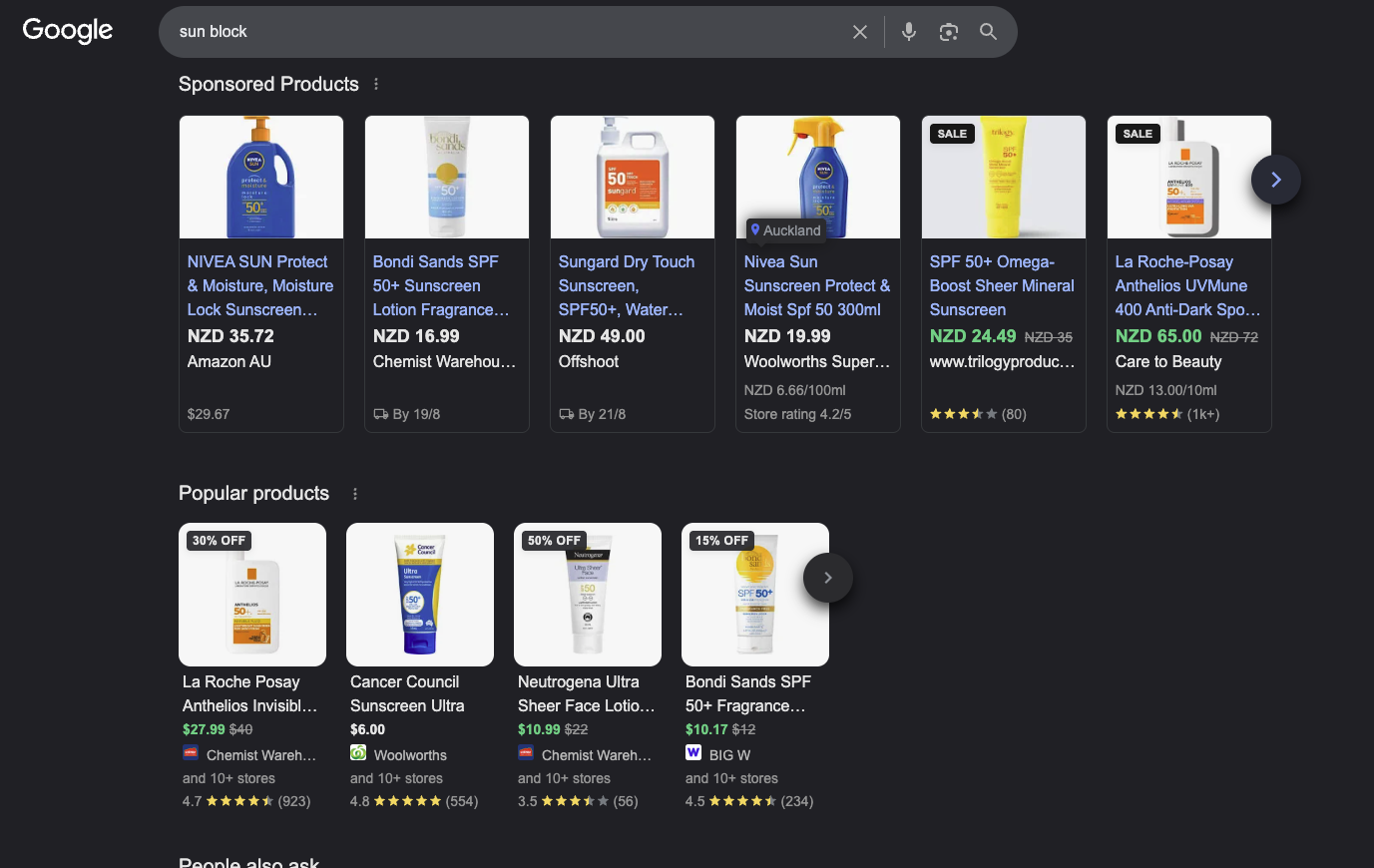
Right now, shoppers are searching Google for products you sell, and Google is showing them a grid of listings from stores that paid nothing to be there. That grid is the Popular Products section. It sits inside normal search results, it looks exactly like Shopping ads, and every click from it is free.
Most Shopify stores never appear in it, and the reason is rarely competition: it is usually a short list of silent data failures that Merchant Centre keeps reporting as “approved”. Affilino checks for the same six failures at the start of every Shopify audit. This guide fixes them in order, so getting featured stops being an accident.
What Is the Popular Products Section on Google?
The Popular Products section is a grid of product listings that Google shows inside normal search results. It looks like a block of Shopping ads, but the listings are organic: a slot costs nothing, and Google fills the grid from Merchant Centre product data and from Product structured data on merchant sites, ranked on relevance to the query. The same product data also feeds the Shopping tab, the shopping knowledge panel, Google Images and Google Lens, so every step in this guide improves those placements at the same time.
On a results page carrying both, the sponsored carousel on top costs money and the Popular products grid under it does not. Grid listings carry discount badges, “and 10+ stores” retailer rollups and pooled review counts, and every one of them earned the slot through product data.
Merchant Centre also contains an analytics report called “Popular products”, which is a different thing. That report ranks what shoppers are searching for across Google; it measures demand in your market, not whether your store appears anywhere. This guide is about the grid in the search results.
How Does Google Pick What Shows in Popular Products?
Google publishes no selection criteria for Popular Products. The documentation covers eligibility, states that free listings rank on relevance to the query, and stops there. Affilino works the problem as four stages, and they split into two separate contests: getting the product into the grid at all (eligibility, matching, relevance), then getting your store chosen as the listed seller of it (selection). Each stage fails for different reasons:
| Stage | The question Google answers | What decides it |
|---|---|---|
| Eligibility | Can this listing be shown at all? | Policy compliance, complete product data, a purchasable page, price and stock that match the site |
| Matching | Which exact product is this? | GTIN, MPN, brand, consistent titles |
| Relevance | Does this product answer the query? | Feed title, description, category depth |
| Selection | Why this store over another selling the same item? | Price, shipping, returns, reviews, store quality |
Two patterns show up repeatedly in the SERPs, and Google documents neither, so treat them as observations rather than confirmed mechanics. Products already in a grid tend to hold their slots, which looks like placement feeding the popularity signals behind it. And grid visibility tends to track overall organic health: stores that lose rankings in a core update are often seen losing grid presence with them. Both argue for having the product data ready before a grid appears for your queries; catching up to an incumbent is the harder job.
Step 1: Diagnose Your Eligibility in Google Search Console
Start in Google Search Console rather than Merchant Centre. Merchant Centre reports plenty of issues, but a clean dashboard does not prove merchant-listing eligibility: products with zero feed errors still miss the grid through exclusions the diagnostics surface poorly, and the structured-data side of eligibility is checked somewhere else entirely.
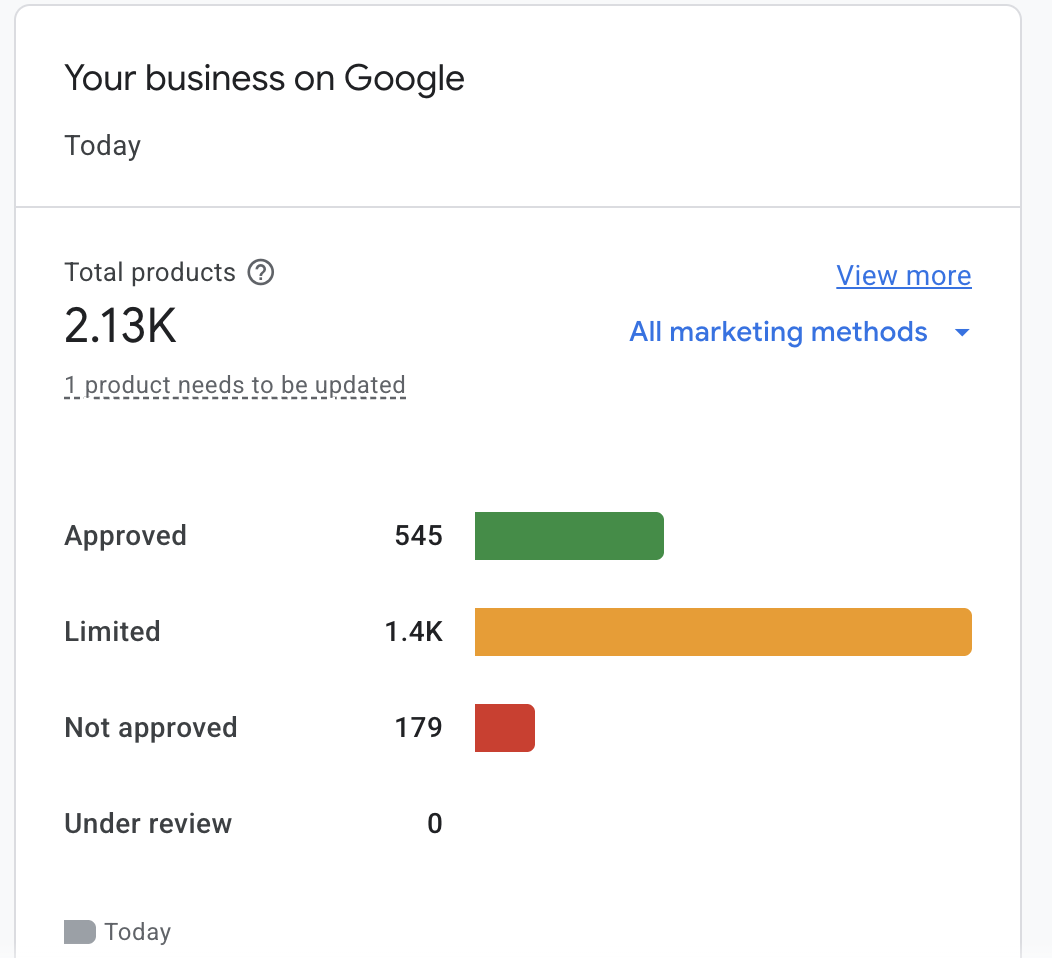
Affilino audit, August 2026: 2,130 submitted products on an Australian ecommerce store, breaking down as 545 approved, 179 not approved and 1,400 sitting in “Limited”, where they serve fewer surfaces than they could. Most store owners read “approved” at the top of that card and never scroll into the orange bar.
In Search Console, open the Shopping section and compare the valid item count in the Product snippets report against the count in the Merchant listings report. Merchant listings is the report that gates Popular Products. A much lower number there means your products are failing eligibility, and failed eligibility is the most common reason a store never appears in the grid at all.
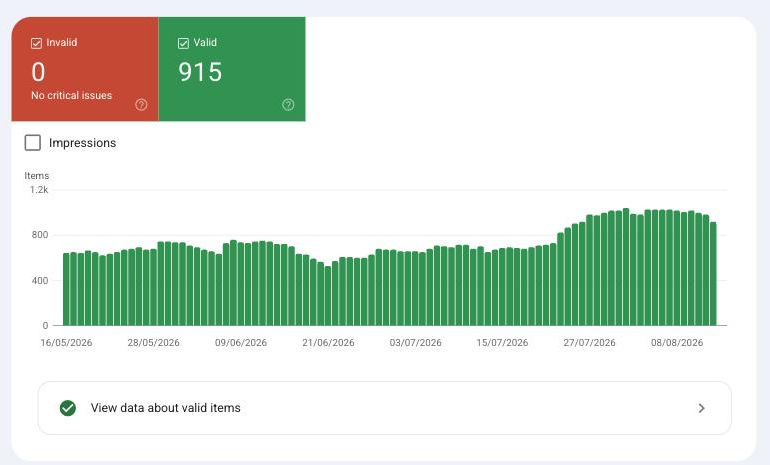
Google Search Console, same audit, August 2026: 915 items valid, zero invalid, so the eligibility gate is passing. Validity is only the gate, though, and the same report grades deeper, which Step 3 comes back to. The two reports sit side by side under Shopping in the left navigation, so the comparison is a thirty-second check.
Affilino checks these six blockers first in every Shopify audit:
AggregateOfferin your Product schema. Google’s merchant listing structured data documentation requires a singleOffer, because the merchant shown must be the seller. Fix: useOfferand describe variants withinProductGroupWithID.- A price of zero, or a quote-based product. The grid only lists products with a price greater than zero, purchasable on the page. Fix: publish the price; quote-only products are ineligible.
- A page that links out to another site to buy. Google’s guidelines exclude pages that pass the shopper elsewhere to purchase. Fix: sell on the page, or accept that the page is ineligible.
- Schema that disagrees with the feed. Google verifies the listing against the page, and a conflicting price or stock level kills visibility while Merchant Centre reports nothing. Fix: audit rendered HTML against the feed, field by field.
- Schema injected by JavaScript. Product markup coded into the theme’s Liquid files renders in the initial HTML and gets crawled reliably; markup injected by a review or feed app’s JavaScript exists only after scripts run, gets crawled less often, and fails fast-moving price and stock data. Fix: keep Product markup in the theme’s Liquid templates, and audit what your apps actually inject.
- Flapping disapprovals. Listings that disapprove and self-resolve in cycles look fine at every check while grid impressions fall. Fix: read the item history, not today’s status, and fix the price or availability sync lag behind the cycle.
Step 2: Fix the Shopify Sync Traps
Shopify stores fail Popular Products eligibility in ways other platforms do not, because the Google & YouTube app syncs whatever your store settings produce. Four traps come up constantly, and the flapping disapprovals from Step 1 usually trace back to one of them:
- The feed links the parent product URL instead of the variant. Google crawls the parent, sees a different price to the one the feed declared for the variant, and disapproves the item. Point
linkat the exact variant URL. - Multi-currency stores show Google the wrong price. With Shopify Markets, Google’s crawler can land on a different currency than the feed declares. Append the
?currency=parameter to feed URLs so the crawled price always matches. - “Continue selling when out of stock” breaks availability. The setting keeps the page selling while the feed reports out of stock, and the mismatch flags the item. Align the setting with what the feed reports.
- Site edits outrun the feed. Google refreshes existing products within minutes of a feed update, so push the feed at the same time as any price or stock change on the site, not on a daily schedule while the site changes hourly.
Step 3: Complete the Required Feed Attributes
Google checks a defined attribute set before a product can enter free listings (the full list lives in Google’s product data specification), and one missing conditional attribute quietly removes a product from contention for the grid. Affilino audits Shopify feeds against this table:
| Attribute | When it is required |
|---|---|
id, title, description, link, image_link, price, availability | Every product |
brand | Every product with an identifiable brand or manufacturer |
gtin | Every product the manufacturer assigned a GTIN; in Australia, usually the EAN on the barcode |
mpn | Every product without a GTIN |
condition | Used or refurbished products |
item_group_id | Every product with variants |
color, size, age_group, gender | Every product in Apparel & Accessories, the category Google names for Popular Products |
Shipping settings, or the shipping attribute | Mandatory for Australian merchants |
Outside the feed, the site needs visible return policy information, and the feed description (up to 5,000 characters) has to reflect the landing page and be written by you. Manufacturer boilerplate that is identical on every store selling the item gives Google nothing to pick your listing on.
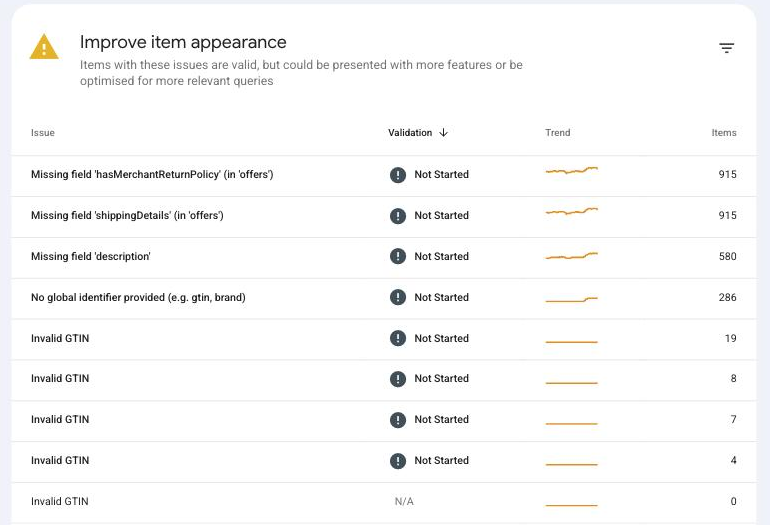
Merchant listings issue table, same audit, August 2026: every row sits on an item Google already counts as valid: all 915 missing shippingDetails and hasMerchantReturnPolicy, 580 missing a description, 286 with no identifier and 19 with an invalid GTIN. Passing the gate in Step 1 and clearing this table are different jobs, and this table is where the attribute work in this step and the identifier work in the next one actually lands.
Step 4: Add GTINs So Google Can Match Your Products
The Popular Products grid is built around known products, with stores competing to be the listed seller of each one. Google works out which known product yours is from its identifiers, and a product it cannot match is locked out of the grid slot for that product entirely. It also misses the pooled reviews and price comparisons that matched products inherit.
Affilino applies three identifier rules on every feed:
- Submit the GTIN the manufacturer assigned. In Australia this is typically the EAN on the barcode.
- Never submit an identifier the manufacturer did not assign. Google checks identifiers against known product records, and a wrong GTIN gets the product disapproved or its performance limited; deliberately faked identifiers invite policy enforcement beyond the single listing.
- For handmade, custom or white label products, set
identifier_existstofalseand supplybrand. Addmpnonly if the manufacturer assigned one; Google says not to invent an MPN, and blank is correct for a product that has none.
Step 5: Rewrite Your Feed Titles
When your product appears in Popular Products, the text on the listing is your feed title, not your page title or your H1. That makes the feed title one of the strongest relevance inputs you control and the thing a shopper decides to click, and Shopify syncs the storefront title into the feed unchanged unless a feed app overrides it. A storefront title is written for someone already on your site, while a grid title has to match what a stranger types into Google.
Affilino rebuilds feed titles to a category structure, front loading the first 70 of the 150 available characters, which is roughly what the grid displays:
| Category | Title structure |
|---|---|
| Apparel | Brand + Gender + Product Type + Feature + Colour + Size |
| Electronics | Brand + Model + Spec + Key Feature |
| Home and furniture | Brand + Product Type + Material + Key Feature |
| Health and beauty | Brand + Format + Volume + Key Ingredient |
Lead with the brand if shoppers search your brand; lead with the product type if they do not know you exist. Keep the feed title, page title and H1 consistent with each other, because Google verifies the listing against the landing page and a title that diverges from the page invites mismatch problems rather than extra reach. Back the title up with category depth: set google_product_category manually to the most specific node that fits, and give product_type at least three levels.
Step 6: Fix Your Product Images
A Popular Products listing is mostly image, and the image gates eligibility before it wins clicks. Google requires at least 500 by 500 pixels and has announced that this minimum applies to every product from 31 January 2027; Affilino supplies 1,500 by 1,500 or larger as the working standard. Watermarks, overlay text, promotional stickers, borders and placeholder images each disqualify an image outright.
Beyond the rules, unique photography is worth the spend even though Google documents no ranking role for it: your image is the whole listing at grid size, and a manufacturer file that fifty other stores also use gives a shopper nothing to remember you by. Affilino’s checklist per product:
- A primary image you shot yourself: clean product on white, no props
- Lifestyle and detail shots in
additional_image_link, which accepts up to ten - A specific image assigned to every variant, so a shopper searching for blue is never shown brown
Step 7: Sharpen Price, Shipping, Returns and Reviews
A matched product appears once in the Popular Products grid, and Google chooses which store gets the placement without documenting how. The four signals below are the ones repeatedly seen moving that choice in SERP checks, and they are commercial rather than technical, which is why two stores with identical feeds get different results. Affilino checks all four in every audit:
| Tiebreaker | What is seen influencing selection | Where to check your standing |
|---|---|---|
| Price | Your price against every store on the same GTIN, favouring the sharper offer | Price competitiveness report in Merchant Centre |
| Shipping and returns | Delivery speed and free returns, shown as badges on grid listings | Shipping and returns settings in Merchant Centre |
| Reviews | Review volume, pooled across every store selling the matched product | Product ratings and seller ratings programs |
| Top Quality Store badge | Shipping experience, returns experience, browsing experience including Core Web Vitals, purchase experience, store rating | Page quality report in Merchant Centre; available in Australia, and it cannot be bought |
Review pooling cuts both ways. On a product many stores sell, the marketplace with thousands of pooled reviews starts ahead, and a new store loses that contest on brand authority before anything technical is wrong. On a product only you sell, every review you collect is one no competitor shares, which is why exclusive products are where a small store’s review base actually moves the grid.
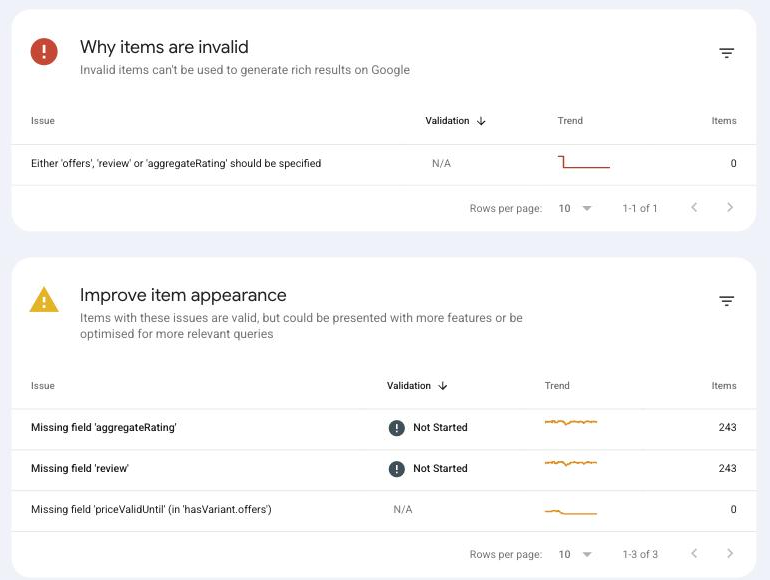
Product snippets report, same audit, August 2026: 243 items with neither aggregateRating nor review markup. That proves the product pages give Google no structured review source, not that Google sees no reviews at all; ratings can also reach Google through the Merchant Centre Product Ratings programme and approved review aggregators. Unless one of those is feeding, the reviews this store has collected are invisible on this surface, and fixing the markup is the cheapest move in the whole step.
Does Popular Products Show in Australia?
Yes. Google documents the Popular Products grid narrowly, as a mobile feature for apparel in the United States, but Australian results have moved past that: product grids now appear across retail categories, furniture and homewares included.
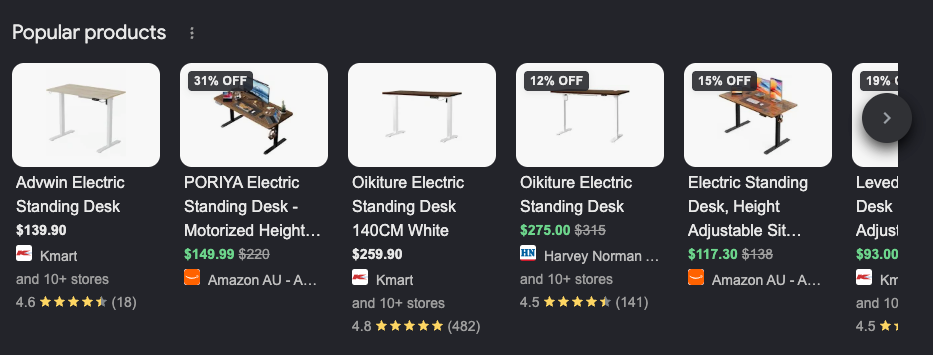
Captured on google.com.au, August 2026: the Popular products grid on a standing desk query, with Kmart, Harvey Norman and Amazon AU holding organic slots carrying discount badges, pooled star ratings and “and 10+ stores” rollups. Standing desks are a long way from the apparel scope Google documents. Affilino builds Australian Shopify stores toward these placements. Where Australia stands:
| Feature | Status in Australia |
|---|---|
| Free listings | Supported; shipping settings are mandatory for Australian merchants |
| Popular Products grids | Appearing in mobile search results across retail categories |
| Shopping knowledge panel | Available on mobile and desktop |
| Top Quality Store badge | Available |
| Ads inside the grids | Appearing in United States grids through 2026; seen far less in Australian grids so far |
How long Australian grids stay as open as they are is not knowable, and nothing about today’s slots is guaranteed to carry forward. The eligibility work is worth doing on its own terms: it is the same product data that feeds every organic shopping surface Google runs.
The Seven Steps in One Table
| Step | Action | Where |
|---|---|---|
| 1 | Compare Product snippets against Merchant listings valid counts, then clear the eligibility blockers | Google Search Console |
| 2 | Fix variant URLs, multi-currency prices, availability settings and feed timing | Shopify settings and feed |
| 3 | Complete required and category-conditional feed attributes; set shipping and returns | Google Merchant Centre |
| 4 | Supply manufacturer-assigned GTINs, or identifier_exists: false with brand | Product feed |
| 5 | Rebuild feed titles to the category structure, first 70 characters first | Product feed |
| 6 | Replace disqualified and generic images; assign variant images | Shopify catalogue |
| 7 | Close the gaps on price, shipping, returns, reviews and the Page quality report | Merchant Centre |
In Affilino’s SERP checks, established Popular Products placements tend to be sticky. Whether that comes from popularity signals, stronger underlying product data or factors Google does not disclose, the practical read is the same: sort the eligibility and the product data before you are trying to displace an established listing, because the same data feeds every other organic shopping surface Google runs.
Want these seven steps run on your store instead of working through them yourself? Affilino is a Shopify SEO agency in Melbourne, Australia. Affilino manages Google Merchant Centre feeds and free listings for Australian Shopify stores inside its Shopify SEO engagements, with results documented on the case studies page. Book a strategy call and bring your Merchant Centre access; the eligibility diagnosis in Step 1 is where the call starts.